Publishing an ASP.NET Core App to AWS EC2
Publishing a web application makes it available outside of the development computer. An ASP.NET Core application can be hosted on an Amazon Web Services (AWS) EC2 instance running Linux. The basic process involves creating the server, publishing the application, transferring the files to the server, and configuring the server to run the application and receive web requests.
High-Level Overview
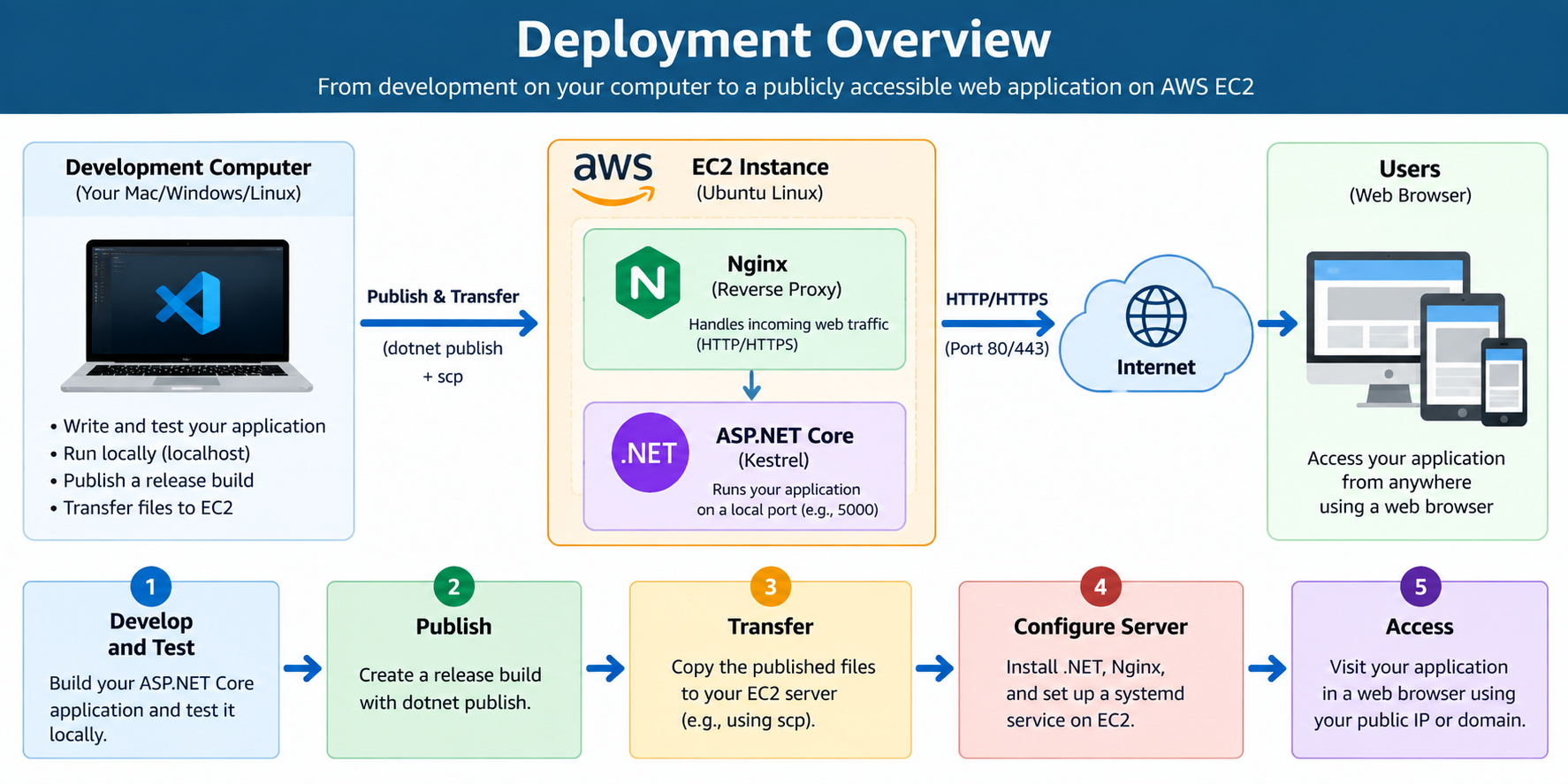
During development, an ASP.NET Core application normally runs only on the developer's computer using localhost. Deploying the application requires moving it to a server that can receive requests from other computers over the Internet.
AWS EC2 provides a virtual computer that can be used as this server. After creating a Linux EC2 instance, the developer connects to it using SSH and prepares it to run an ASP.NET Core application. The application is published on the development computer and the resulting files are transferred to the EC2 instance.
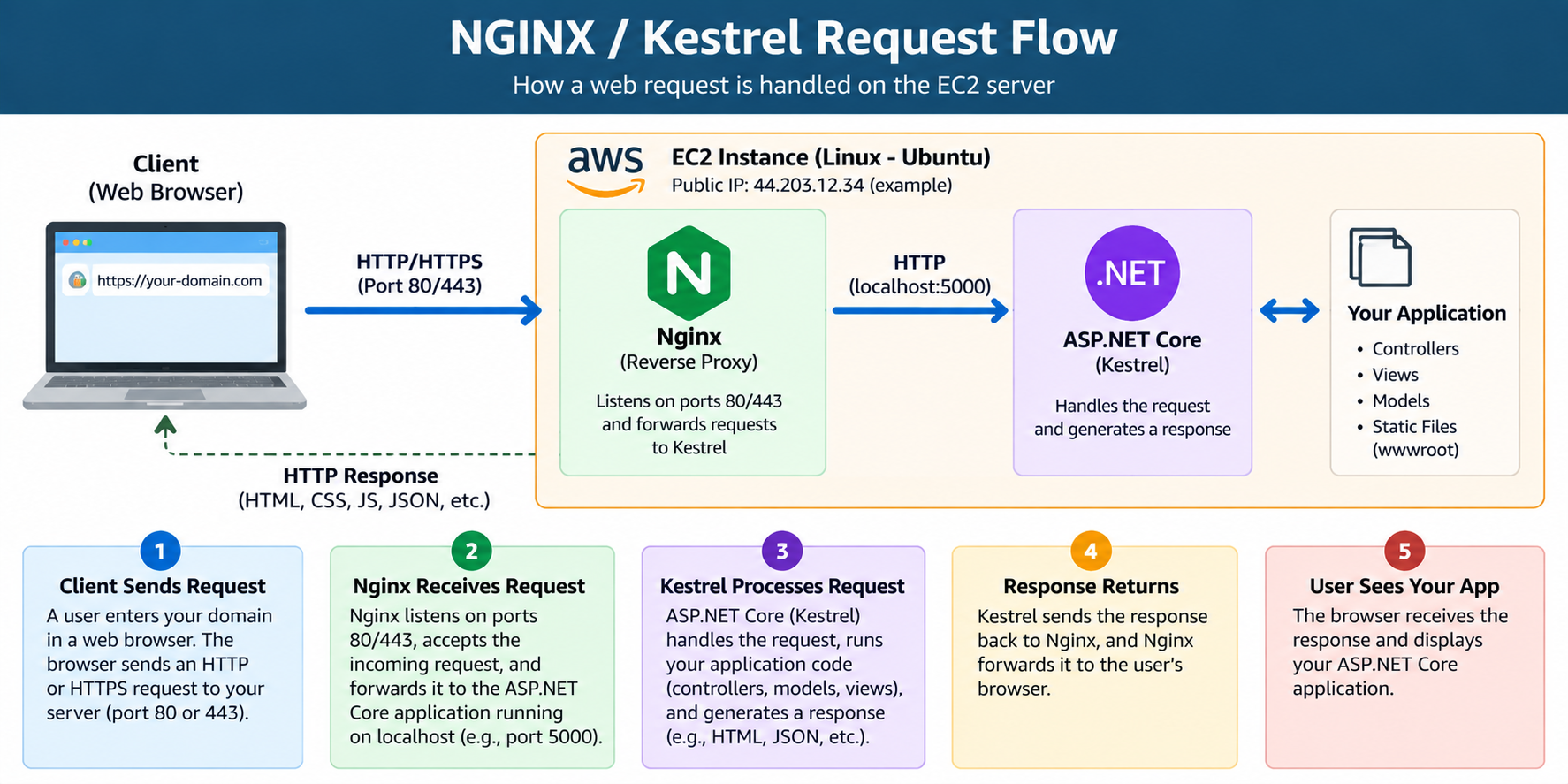
On the server, ASP.NET Core uses Kestrel to run the application. Nginx can then act as a reverse proxy, accepting public HTTP or HTTPS requests and forwarding them to the ASP.NET Core application. A systemd service can be used to keep the application running in the background and restart it when necessary.
Condensed Walkthrough
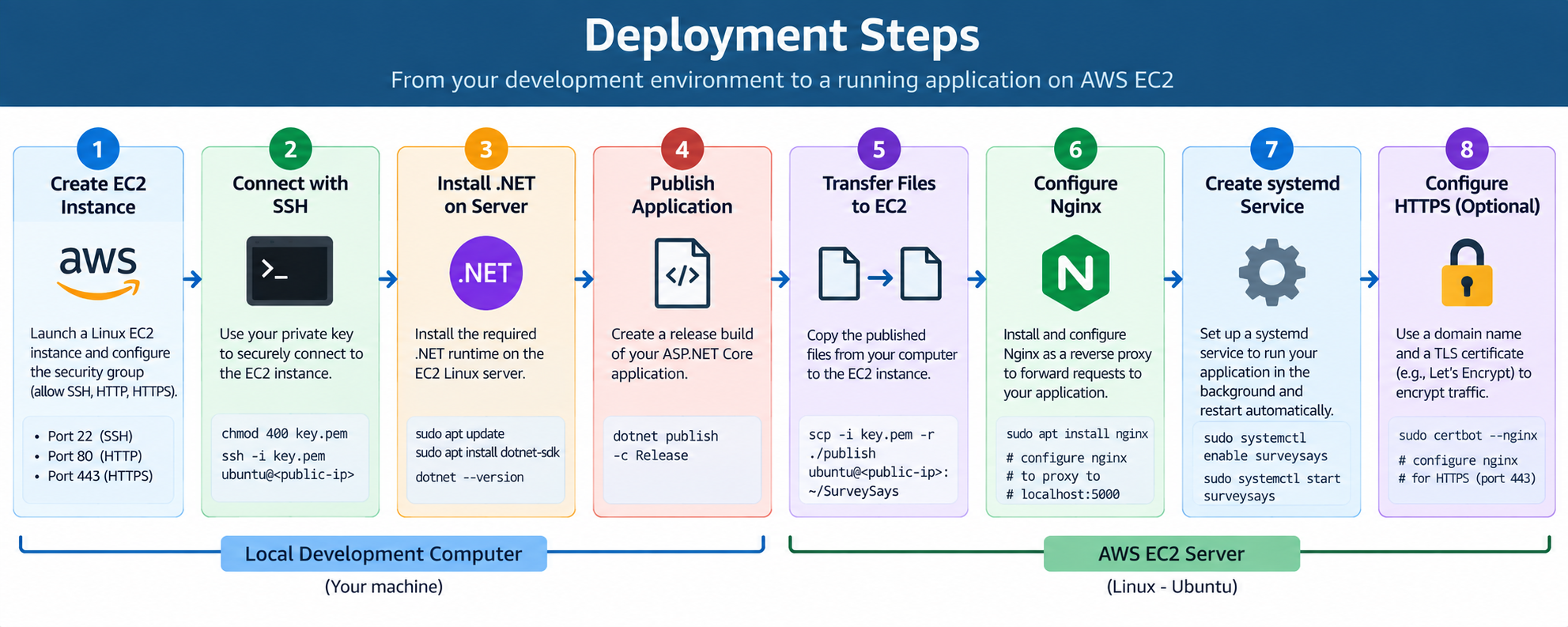
The following steps summarize the deployment process. More detailed instructions for each step are available in the appendices below.
- Create a Linux EC2 instance and configure its security group. See Appendix A.
- Use the AWS private key to connect to the server with SSH. See Appendix B.
- Install the required .NET runtime on the Linux server. See Appendix C.
- Publish the ASP.NET Core project using the .NET CLI. See Appendix D.
- Transfer the published application files to the EC2 server. See Appendix E.
- Install and configure Nginx as a reverse proxy. See Appendix F.
- Create a systemd service so the application runs in the background. See Appendix G.
- Configure HTTPS/TLS when a domain name is available. See Appendix H.
Appendix A: Create an EC2 Instance
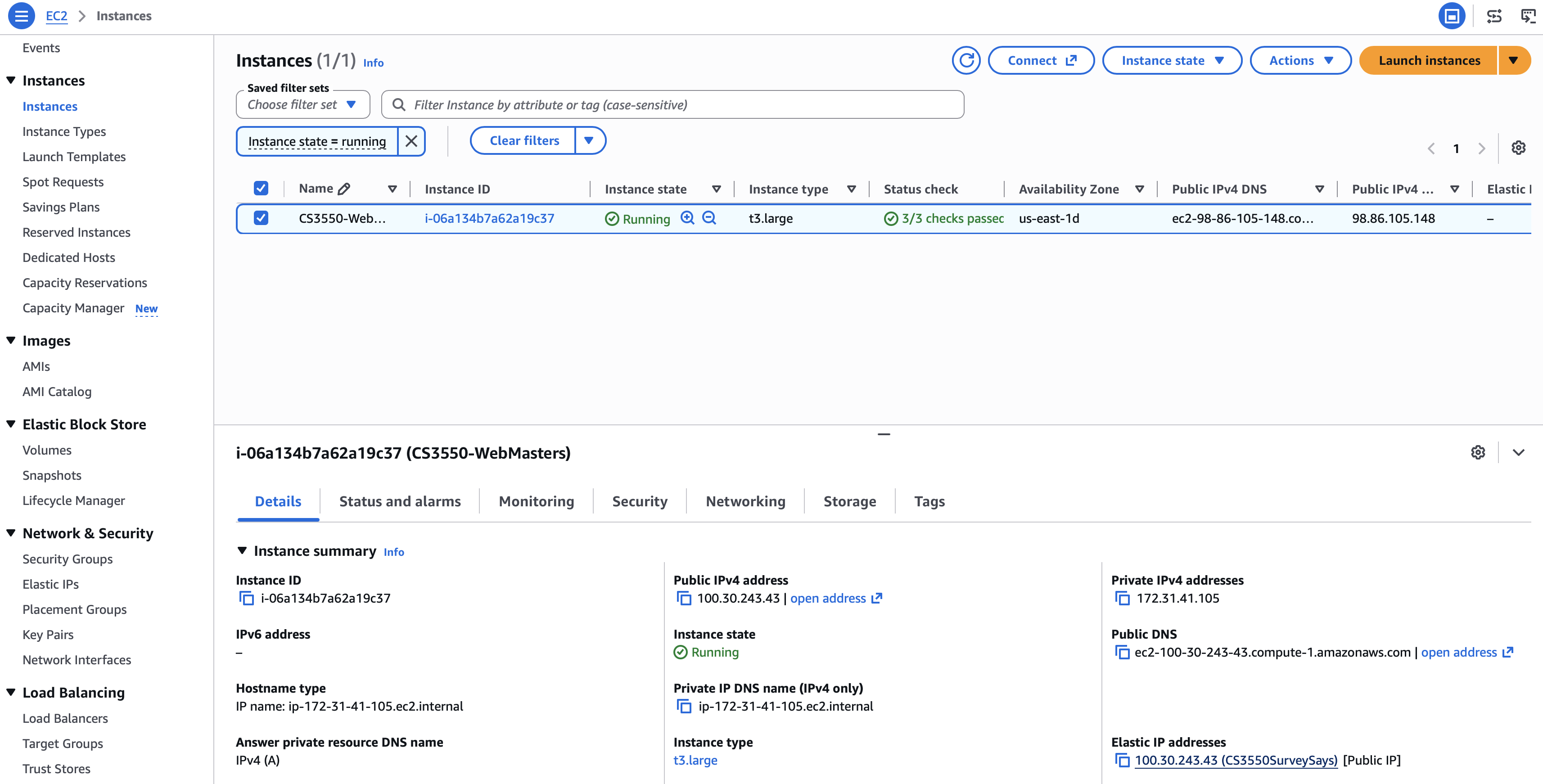
The first step is to create an EC2 instance through AWS. An EC2 instance is a virtual computer running in an AWS data center. A Linux distribution, such as Ubuntu, can be selected as the operating system.
During creation, select or create an SSH key pair. The downloaded private key is required later when connecting to the instance.
The EC2 security group acts as a firewall. It should allow the network traffic needed by the server. Common ports include:
- 22 - SSH
- 80 - HTTP
- 443 - HTTPS
Appendix B: Connect with SSH
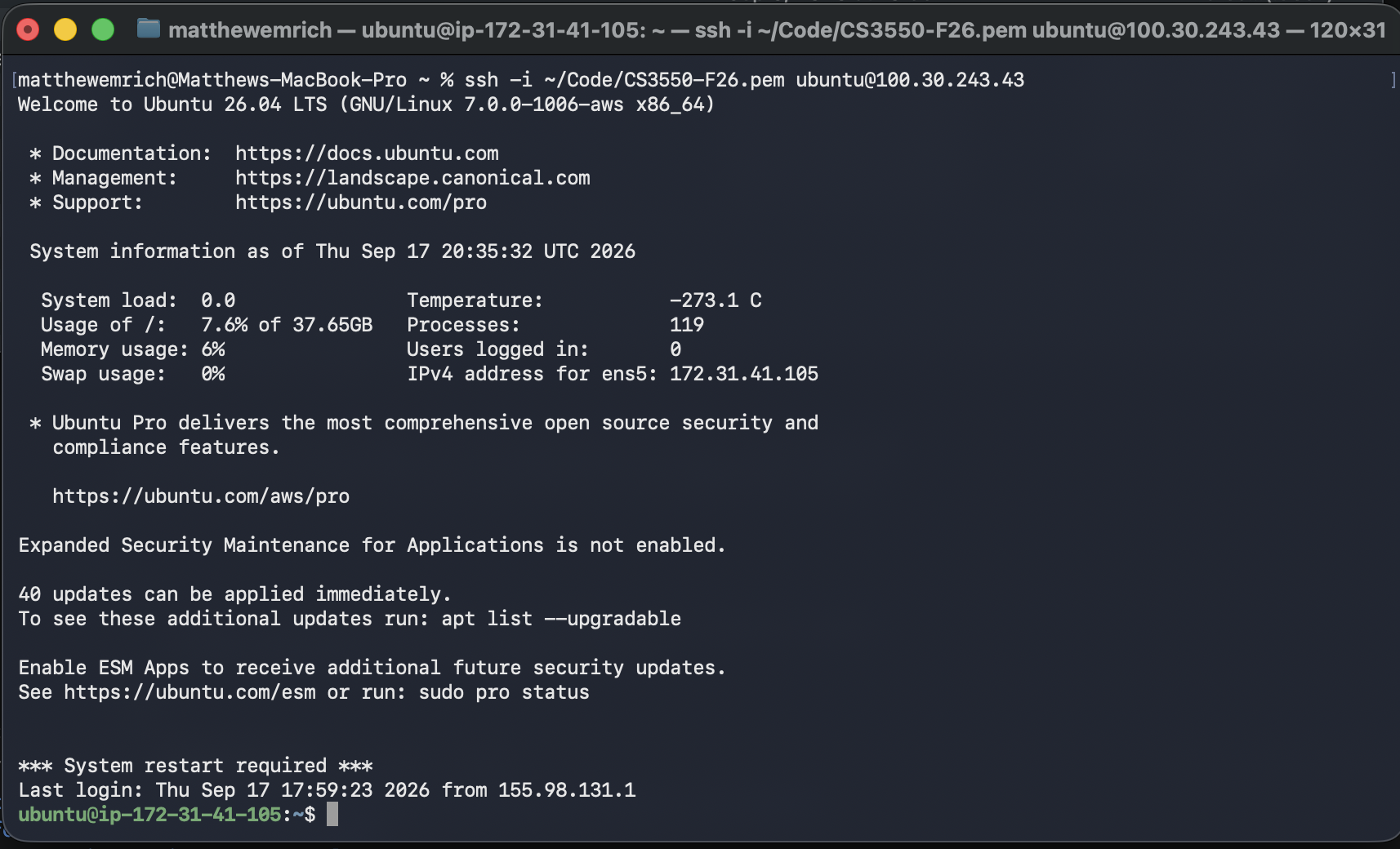
SSH provides a secure way to open a command-line session on the remote Linux server. On macOS or Linux, the permissions of the private key may need to be restricted before it can be used.
chmod 400 my-key.pemThe server can then be accessed using the SSH command and the EC2 instance's public address.
ssh -i my-key.pem ubuntu@SERVER_ADDRESSAfter the connection succeeds, commands entered into the terminal are running on the EC2 Linux server rather than the local computer.
Appendix C: Install .NET
The server needs the appropriate .NET runtime to execute a framework-dependent ASP.NET Core application. The required version should match the version targeted by the application.
After installation, the available version can be checked with:
dotnet --versionThe exact installation commands depend on the Linux distribution and .NET version being used.
Appendix D: Publish the Application
Publishing prepares the ASP.NET Core project for deployment. From the
project directory containing the .csproj file, the
application can be published using:
dotnet publish -c Release
The Release configuration creates a build intended for
deployment rather than development. The resulting publish directory
contains the files that need to be placed on the server.
Appendix E: Transfer the Application
After publishing, the application files must be copied from the
development computer to the EC2 instance. One way to securely transfer
these files is with scp.
scp -i my-key.pem -r ./publish ubuntu@SERVER_ADDRESS:~/SurveySaysAfter the files have been transferred, SSH can be used to connect to the server and verify that the files are present.
The application can also be run manually as an initial test:
dotnet SurveySays.dllIf the application starts successfully, Kestrel will listen for requests on its configured local port.
Appendix F: Configure Nginx
Kestrel runs the ASP.NET Core application, but it is common to place Nginx in front of Kestrel as a reverse proxy. Nginx receives requests from users and forwards those requests to the application.
This creates a request path similar to:
Browser → EC2 → Nginx → Kestrel → ASP.NET CoreNginx can be installed on Ubuntu using the system package manager.
sudo apt update
sudo apt install nginx
The Nginx configuration must then specify the local address and port where the ASP.NET Core application is listening.
Appendix G: Configure systemd
Running dotnet SurveySays.dll manually is useful for
testing, but the application would stop when the terminal session ends.
A systemd service allows Linux to manage the application as a
background service.
The service configuration identifies the application's working directory and tells Linux how to start the application. After creating the service, it can be enabled and started using systemctl.
sudo systemctl enable surveysays
sudo systemctl start surveysays
sudo systemctl status surveysays
Enabling the service allows it to start automatically when the server boots, while the status command can be used to check whether the application is currently running.
Appendix H: Configure HTTPS
HTTPS encrypts communication between the user's browser and the web server using TLS. A valid TLS certificate normally requires a domain name that points to the EC2 server.
A service such as Let's Encrypt can provide a TLS certificate. Nginx can then be configured to use the certificate and accept HTTPS connections on port 443.
After HTTPS is configured, the overall request flow becomes:
Browser
   ↓ HTTPS
Nginx
   ↓ HTTP on the server
Kestrel
   ↓
ASP.NET Core Application
Summary
Deploying an ASP.NET Core application requires more than copying source code to another computer. The application must be published, transferred to a server, and run in an environment capable of receiving web requests. AWS EC2 supplies the Linux server, Kestrel runs the ASP.NET Core application, Nginx handles incoming web traffic, and systemd keeps the application running. HTTPS can then be added to protect communication between the browser and the server.